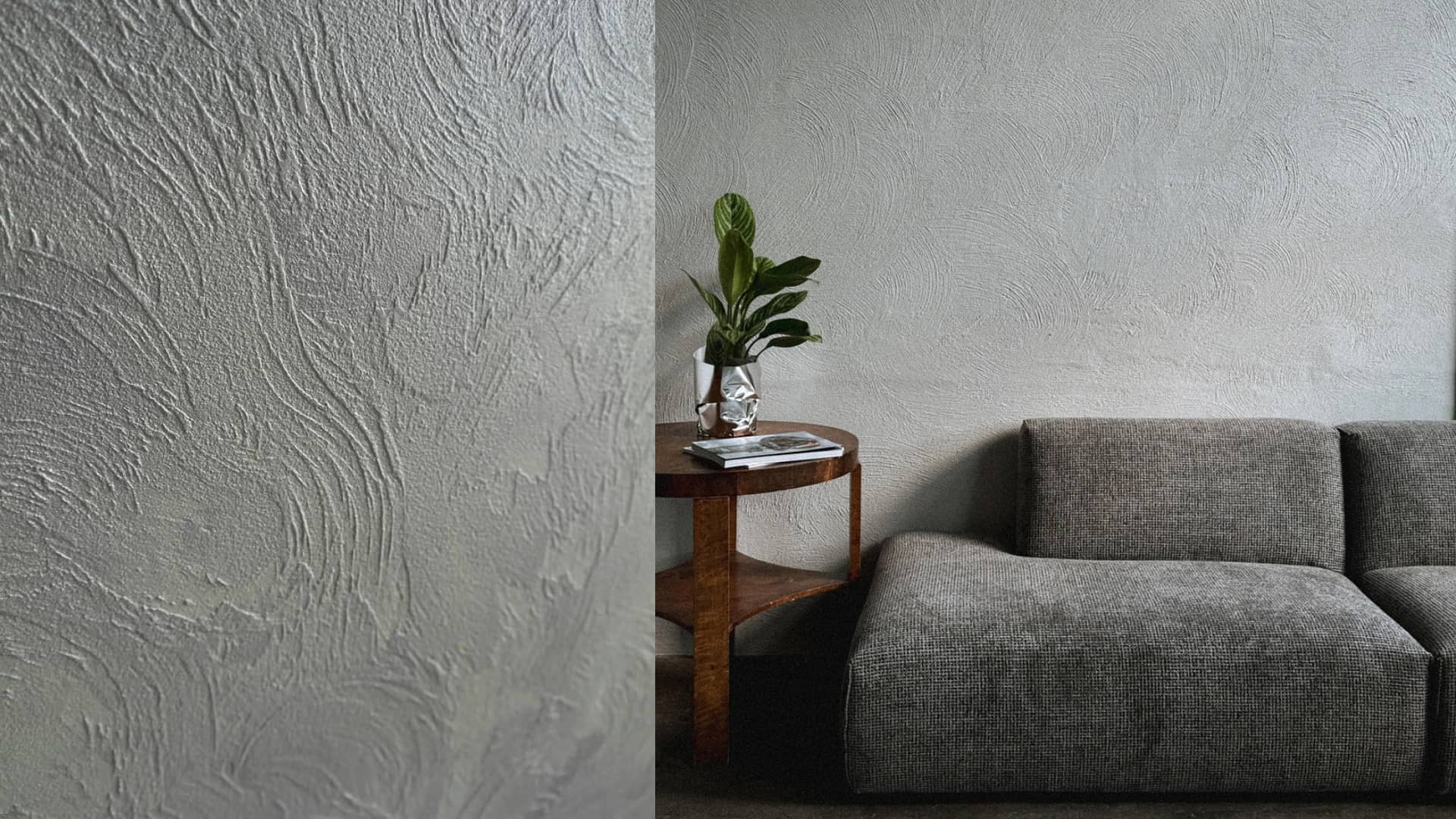
Material & Texture Mapping in 3D: Tips to Make Surfaces Look Real
A flawless 3D model with perfect geometry will still look lifeless without great materials. It's the textures — the way light hits a scratched metal surface, the subtle dust on glass, the worn edges of painted wood — that make the difference between "CG" and "convincing." Materials tell stories: they show age, use, quality, and context. They're the fingerprints of realism.
In this comprehensive guide, we dive deep into material and texture mapping in 3D rendering. You'll learn the fundamentals of PBR (physically based rendering), explore essential texture types like albedo, roughness, normal, and displacement maps, discover how imperfections elevate realism, and walk away with actionable workflows for architectural, interior, and product visualization.
Primary keyword: material and texture mapping in 3D. Related LSI keywords: PBR materials, texture mapping, bump maps, normal maps, reflection maps, displacement, roughness maps, albedo, imperfections in 3D, photoreal textures, substance painter, material shaders.
Why materials make or break realism
Materials reveal physical truth
Even with perfect lighting, a wall that looks like plastic instead of plaster will ruin believability. Materials must respond to light the way real-world surfaces do — absorbing, reflecting, scattering.
Textures add micro-detail
The eye expects variation. Perfectly uniform surfaces read as fake. Real materials have grain, pores, scratches, and color shifts that textures provide.
Imperfections create authenticity
A brand-new phone has fingerprints. Wood has knots. Concrete has stains. These "flaws" are what make renders feel lived-in and real.
Bad materials waste great lighting
You can spend days perfecting HDRI and ray tracing, but if your materials don't interact with light correctly, the render will still fall flat.
PBR fundamentals: the modern standard
What is PBR?
Physically Based Rendering (PBR) uses real-world physics to define how materials interact with light. Instead of arbitrary sliders, PBR materials use measured properties like metalness, roughness, and index of refraction.
Why PBR matters
- Predictable results: Materials behave consistently across different lighting conditions.
- Artist-friendly: Easier to achieve photoreal results without deep technical knowledge.
- Industry standard: Supported by all modern engines (Unreal, Unity, V-Ray, Corona, Arnold, Cycles).
Core PBR workflow
PBR materials typically use these texture maps:
- Base Color (Albedo): The raw color without lighting or shadows
- Roughness: Controls surface smoothness (0 = mirror, 1 = matte)
- Metallic: Binary-ish (0 = dielectric, 1 = metal)
- Normal: Simulates surface detail without geometry
- Displacement/Height: Actually deforms geometry for detail
- Ambient Occlusion (AO): Adds shadowing in crevices (often baked)
- Opacity: For transparent or semi-transparent materials
- Emission: For self-lit surfaces (screens, LEDs)
Essential texture types explained
Base color (albedo)
The "color" of the material without any lighting information.
Guidelines:
- No shadows or highlights baked in (that's lighting's job)
- Use measured values when possible (real paint chips, wood samples)
- Avoid pure black (minimum ~30 sRGB) or pure white (max ~240)
- Keep contrast subtle unless the material is naturally high-contrast
Common mistake: Using photos directly as albedo. Photos include lighting and shadows — strip those out or use scanned albedo maps.
Roughness (glossiness inverse)
Controls micro-surface scattering. Rough = diffuse, smooth = sharp reflections.
Guidelines:
- Vary roughness across a surface (weathered edges, polished centers)
- Use grayscale maps; white = rough, black = glossy
- Most materials are not perfectly smooth or perfectly rough
- Fingerprints and smudges = localized roughness changes
Example: Brushed metal has directional roughness; polished marble has low roughness with subtle variation.
Metallic
Determines if the material is metal (reflective, colored reflections) or dielectric (glass, plastic, wood).
Guidelines:
- Most surfaces are 0 (non-metal) or 1 (metal); avoid in-between except for oxidation/dirt transitions
- Metals reflect environment color; dielectrics reflect white/neutral
- Use 0 for painted metal (paint is dielectric)
Normal maps
Simulate surface detail by perturbing surface normals without adding geometry. Essential for bump, ridges, and micro-detail.
Guidelines:
- Use tangent-space normal maps (purple/blue color)
- Combine with displacement for extreme detail
- Adjust strength based on viewing distance
- Derive from high-poly sculpts or generate from height maps
Common uses: Tile grout lines, fabric weave, embossed logos, wood grain, stucco texture.
Displacement maps
Actually deform geometry at render time. More realistic than normals but slower.
Guidelines:
- Requires subdivided mesh or adaptive tessellation
- Use 32-bit maps for precision
- Combine with normal maps for efficiency (displacement for macro, normal for micro)
- Set proper scale and offset to avoid geometry explosion
Example: Brick walls, carved stone, terrain, fabric folds.
Reflection maps
Sometimes used in non-PBR workflows to fake environment reflections. In PBR, handled by roughness + environment.
The power of imperfections
Perfection is boring. Real-world objects accumulate wear, dirt, and variation. Adding imperfections is the secret to photoreal materials.
Dust and dirt
- Where: Horizontal surfaces, crevices, edges
- How: Subtle AO-driven overlays; desaturated color shifts; slight roughness increase
- When: Always, unless depicting brand-new showroom items
Scratches and wear
- Where: High-traffic areas, edges, handles
- How: Break up roughness and normal maps with scratch textures; reveal underlying material on edges
- When: Furniture, appliances, metal fixtures, flooring
Fingerprints and smudges
- Where: Glass, polished metal, glossy surfaces
- How: Localized roughness variation; subtle normal detail; use photo references
- When: Product visualization, close-ups, anything touchable
Edge wear and chipping
- Where: Corners, trim, painted surfaces
- How: Curvature-driven masks reveal base material (metal under paint, wood under veneer)
- When: Older buildings, vintage products, industrial environments
Color variation
- Where: Natural materials (wood, stone, fabric)
- How: Subtle hue/saturation shifts across UV space; use procedural noise
- When: Large surfaces that would show natural variation
Texture resolution and scale
Resolution guidelines
- Hero assets (close-ups): 4K (4096×4096) minimum
- Mid-ground props: 2K (2048×2048)
- Background elements: 1K or lower
- Tiling textures: 2K–4K for seamless detail
Real-world scale matters
Textures must match physical dimensions. A 10cm × 10cm tile should map to 10cm in your scene, not stretch across a 2m wall.
How to check:
- Place a reference object (1m cube) in your scene
- Apply a checker texture at known scale (10cm squares)
- Adjust UV scale until checkers match real-world size
- Apply final textures at the same scale
Tiling vs unique UVs
- Tiling: Efficient for large surfaces (walls, floors); requires seamless textures
- Unique (UDIM): For hero objects needing custom detail; higher memory cost
Workflow: creating realistic materials
Step 1 — Gather references
Collect photos of the actual material under different lighting. Note color, roughness, and surface detail.
Step 2 — Choose source
- Scanned textures: Quixel Megascans, Poliigon, Textures.com
- Procedural: Substance Designer, built-in shader nodes
- Custom: Substance Painter, Photoshop, photo scanning
Step 3 — Build base maps
Start with albedo and roughness. Test under neutral lighting to ensure they work together.
Step 4 — Add detail layers
Normal maps for micro-surface, displacement for macro deformation, AO for depth.
Step 5 — Introduce imperfections
Dirt, scratches, fingerprints — layer subtly. Use masks driven by AO, curvature, or hand-painted maps.
Step 6 — Test and iterate
Render under multiple lighting conditions (daylight, dusk, artificial). Adjust roughness and normal strength based on how light reads.
Step 7 — Optimize
Compress textures where possible, reduce resolution for distant objects, reuse tileable materials.
Material examples: applying the principles
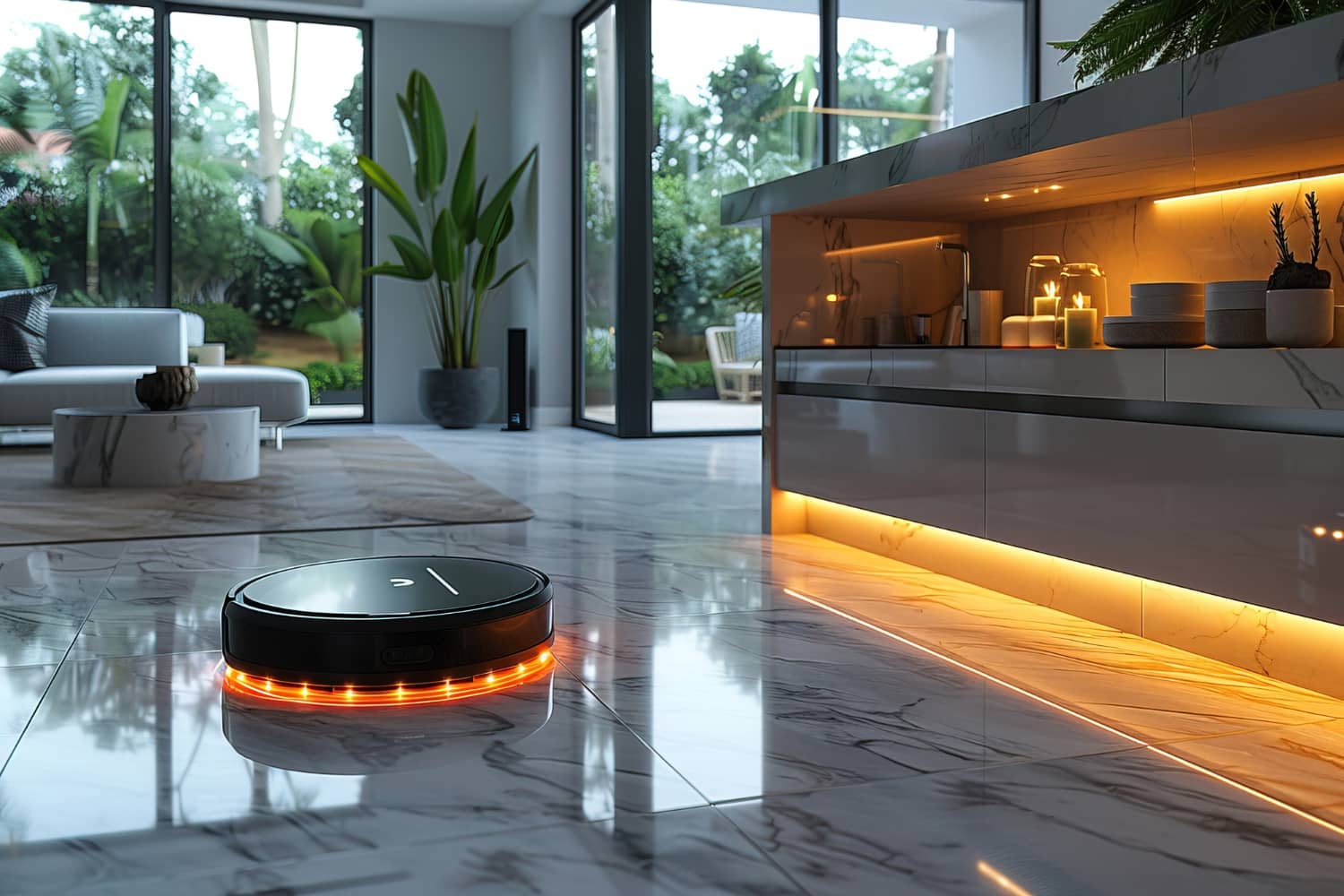
Polished marble floor
- Albedo: Light gray with subtle veining (procedural or scanned)
- Roughness: Low (0.1–0.2) with slight variation from cleaning streaks
- Normal: Subtle veins and micro-pits
- Imperfections: Dust in corners, faint scratches in traffic paths
Brushed stainless steel
- Albedo: Neutral gray (~180 sRGB)
- Metallic: 1.0
- Roughness: Mid (0.3–0.5) with anisotropic direction
- Normal: Directional brush lines
- Imperfections: Fingerprints (roughness variation), edge wear
Painted drywall
- Albedo: Off-white with subtle color shifts
- Roughness: High (0.7–0.9)
- Normal: Very subtle orange-peel texture
- Imperfections: Scuff marks, nail holes, edge chips revealing primer
Oak hardwood flooring
- Albedo: Rich brown with natural grain variation
- Roughness: Mid-low (0.3–0.4); glossier in low-traffic areas
- Normal: Wood grain, plank edges
- Displacement: Optional for extreme close-ups (knots, cracks)
- Imperfections: Scratches, worn finish in high-traffic zones, color fading near windows
Glass (window)
- Albedo: Near black (glass color is in reflection/refraction)
- Roughness: Very low (0.0–0.05)
- IOR: 1.52 (standard glass)
- Normal: None unless textured glass
- Imperfections: Dust particles, water spots, fingerprints (roughness map)
Advanced techniques
Layered materials
Combine base materials with overlays (dirt, rust, paint) using masks. Useful for complex surfaces like weathered concrete or peeling paint.
Procedural textures
Use shader nodes (Blender) or Substance Designer to create textures that adapt to scale and never tile. Great for organic variation.
Triplanar mapping
Projects textures from three axes; useful for complex geometry or terrain where standard UVs fail.
Curvature and AO-driven masks
Automate wear and dirt placement using geometry data. Edges get more wear; crevices get more dirt.
Anisotropic reflections
For brushed metals, hair, or fabric with directional highlights. Requires tangent-based shading.
Common material mistakes and fixes
1. Uniform, lifeless surfaces
Problem: No variation or imperfections.
Fix: Add subtle noise to albedo and roughness; introduce wear patterns.
2. Wrong scale
Problem: Textures stretched or tiled incorrectly.
Fix: Measure real-world dimensions; adjust UV scale to match.
3. Baked lighting in albedo
Problem: Photos with shadows used as base color.
Fix: Use scanned albedo or strip lighting from photos; let renderer handle lighting.
4. Overly shiny or overly matte
Problem: Roughness set to extremes.
Fix: Most real materials are mid-range (0.3–0.7); vary within that.
5. Ignoring edge wear
Problem: Sharp, perfect edges.
Fix: Use curvature maps to add slight roughness or color shifts on edges.
Texture sources and tools
Texture libraries
- Quixel Megascans: Scanned, photoreal; includes full PBR stacks
- Poliigon: High-quality; subscription or pay-per-asset
- Textures.com (formerly CGTextures): Large library; requires processing
- Polyhaven: Free, open-source; good for HDRI and basic materials
Texture creation tools
- Substance 3D Painter: Paint directly on 3D models; export PBR maps
- Substance Designer: Procedural material creation; node-based
- Photoshop: Manual editing and compositing of texture layers
- Quixel Mixer: Mix and blend scanned materials
Scanning and photography
- Capture real materials with a camera + polarizing filter
- Use photogrammetry for complex surfaces
- Process with Agisoft Metashape or RealityCapture
Performance and optimization
Texture memory management
High-res textures consume VRAM. Strategies:
- Use texture atlases to reduce draw calls
- Apply mipmaps for efficient LOD
- Compress with DDS/KTX formats for real-time
- Reduce resolution on background or distant objects
Real-time vs offline rendering
- Real-time (Unreal/Unity): Prioritize compression, low poly, baked maps
- Offline (V-Ray/Corona): Can afford higher res and more complex shaders
FAQ
What is PBR and why should I use it?
PBR (Physically Based Rendering) uses real-world material properties to create realistic interactions with light. It's industry-standard, predictable, and easier to achieve photoreal results than older shading models.
What's the difference between normal maps and displacement maps?
Normal maps fake surface detail by changing how light reflects, without altering geometry. Displacement maps actually deform the mesh at render time, creating true depth. Normals are faster; displacement is more realistic for extreme detail.
How do I make materials look less "CG" and more realistic?
Add imperfections: dust, scratches, fingerprints, color variation, edge wear. Use PBR workflows with proper roughness variation. Avoid perfectly uniform surfaces and match real-world texture scale.
What resolution should my textures be?
Hero objects and close-ups: 4K. Mid-ground: 2K. Background: 1K or lower. Large tiling surfaces (walls, floors): 2K–4K seamless. Always match resolution to viewing distance and memory budget.
Where can I get high-quality PBR textures?
Quixel Megascans, Poliigon, Textures.com, and Polyhaven (free). You can also create custom textures with Substance Painter/Designer or scan real materials with photogrammetry.
Conclusion: materials are the bridge between geometry and believability
Perfect geometry and flawless lighting are wasted without great materials. Texture mapping in 3D rendering is both art and science: understanding PBR principles gives you the science, while layering imperfections and variation brings the art. When you nail materials — the scratches on stainless steel, the dust in window corners, the worn edges of painted trim — your renders stop looking rendered. They just look real.
At Space Visual, we combine technical material workflows with artistic attention to detail, building custom PBR materials that match real-world samples and perform under any lighting. Whether you need architectural finishes, product close-ups, or complex layered surfaces, we deliver textures that sell the vision.
Explore Latest Blogs
3D Product Visualization: Boosting E‑commerce Sales with Interactive Renders
A comprehensive guide to 3D product visualization for e‑commerce — how interactive renders, 360° viewers, and animations increase conversions, reduce photoshoot costs, and speed up launches.

How 3D Renderings Help in Client Approvals and Faster Project Sign-off
A comprehensive guide to using 3D renderings for faster client approvals and project sign-off — covering decision psychology, approval workflows, cost savings, and stakeholder communication strategies.