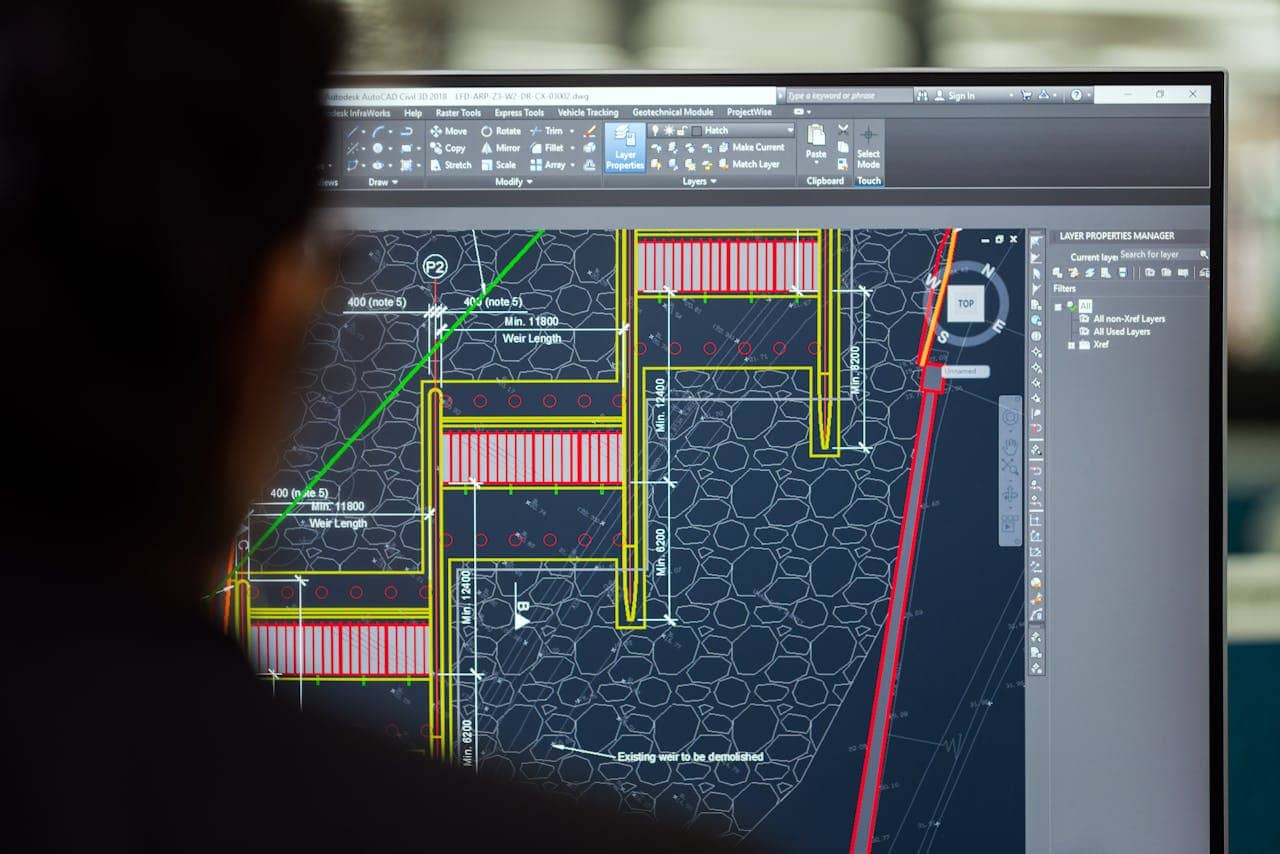
How to Prepare Architectural Plans / CAD Files for 3D Visualization
You've spent weeks perfecting your architectural design. Every detail is resolved, every dimension checked. You send the CAD files to your visualization studio, expecting stunning renderings in days. Instead, you get questions: "Which walls are structural?" "What's the ceiling height here?" "Why are there duplicate lines everywhere?" The project stalls. Timelines slip. Frustration builds.
This scenario plays out daily in architecture and design studios worldwide. The culprit? CAD files prepared for construction documentation — not 3D visualization. While your drawings communicate perfectly to contractors on-site, they often confuse 3D artists who need to interpret spatial relationships, materials, and design intent from 2D data.
The good news: with proper preparation, your CAD files can streamline the rendering process, reduce back-and-forth, slash turnaround times, and ensure the final visuals match your design vision. This comprehensive guide provides a practical checklist for preparing architectural plans and CAD files for 3D visualization — covering scale verification, layer organization, naming conventions, geometry cleanup, and communication best practices.
Whether you use AutoCAD, Revit, ArchiCAD, Vectorworks, or any CAD platform, these principles apply. Master them, and you'll transform how smoothly your projects move from design to visualization.
Primary keyword: prepare architectural plans for 3D visualization. Related LSI keywords: CAD file preparation, architectural drawings for rendering, 3D modeling from CAD, layer organization, file cleanup, naming conventions, CAD to 3D workflow, BIM to rendering.
Why CAD file preparation matters
The cost of poor preparation
When CAD files arrive unprepared, visualization studios face:
- Interpretation delays: 2–5 days clarifying design intent
- Modeling errors: Incorrect dimensions, missing elements, wrong materials
- Revision cycles: Re-work when errors surface late
- Budget overruns: Extra hours billed for file cleanup and detective work
Real-world example:
A residential project's AutoCAD files showed overlapping wall lines, unlabeled room heights, and mixed units (metric and imperial). The visualization team spent 12 hours cleaning files and emailing clarifications. Result: 1-week delay, $1,800 in additional costs, and frustrated client.
The benefits of proper preparation
Well-prepared CAD files enable:
- Faster turnaround: 3D artists start modeling immediately (not troubleshooting)
- Accuracy: Renderings match design intent without guesswork
- Cost efficiency: No cleanup surcharges; predictable budgets
- Better communication: Fewer misunderstandings; smoother collaboration
Investment: 2–4 hours of CAD file preparation saves 10–20 hours downstream.
Essential checklist: Preparing CAD files for 3D visualization
1. Verify and lock scale
The problem:
CAD files with incorrect or inconsistent scale create models that are 10× too large, proportions that don't match reality, or dimensions that contradict the drawing units.
Checklist:
- Confirm drawing units: Ensure the file is set to correct units (millimeters, feet/inches, etc.). In AutoCAD:
UNITScommand. In Revit: Project Units settings. - Check actual dimensions: Measure a known element (e.g., a door should be 36" or 900mm wide). If measurements don't match, the scale is wrong.
- Avoid scaled blocks/references: If you've inserted scaled blocks (e.g., furniture at 0.5× scale), explode and rescale to 1:1 or note clearly.
- Lock scale before export: Set all viewports, references, and external files to consistent scale.
- Include scale note in export: Add a note in the file: "All drawings at 1:1 scale in millimeters" or equivalent.
Pro tip: Export a test PDF with dimensions visible. Have someone else measure; if it matches, your scale is correct.
2. Organize layers logically
The problem:
Chaotic layer structures slow modeling. When "walls," "doors," and "furniture" live on the same layer, 3D artists waste hours manually sorting geometry.
Checklist:
-
Separate by element type: Create distinct layers for:
- Walls (exterior and interior separated if possible)
- Doors and windows
- Furniture and fixtures
- Structural elements (columns, beams)
- Ceiling and flooring outlines
- Landscaping and hardscaping
- Annotations and dimensions (separate from geometry)
-
Use consistent naming conventions: Avoid cryptic names like "Layer1" or "A-WALL-TEMP-COPY-2." Use clear, standardized names:
ARCH-WALL-EXTERIORARCH-WALL-INTERIORARCH-DOORARCH-WINDOWARCH-FURNITUREARCH-CEILINGSITE-LANDSCAPEANNO-DIMENSIONS(annotation layer)
-
Freeze or hide annotation layers: Dimensions, text, hatches, and notes clutter 3D modeling. Put them on separate layers and freeze/hide before export.
-
Eliminate unused layers: Delete empty or redundant layers. Use
PURGEcommand in AutoCAD to clean. -
Color-code meaningfully: Assign layer colors that correspond to material types (e.g., red for brick walls, blue for glass, green for landscaping). Helps 3D artists identify materials at a glance.
Pro tip: Create a layer legend document ("Layer_Legend.pdf") explaining what each layer represents. Send it with your CAD files.
3. Clean up geometry
The problem:
Duplicate lines, overlapping polylines, fragmented curves, and stray objects create messy models. 3D software imports these errors, causing gaps, z-fighting (flickering surfaces), and inaccurate measurements.
Checklist:
-
Delete duplicate geometry: Use cleanup tools:
- AutoCAD:
OVERKILLcommand removes overlapping lines - Revit: Use Warnings tool to find duplicate elements
- ArchiCAD: Check Info Box for duplicate elements
- AutoCAD:
-
Close open polylines: Walls, rooms, and floor boundaries should be closed shapes (no gaps). Open polylines confuse 3D extrusion algorithms.
- AutoCAD:
PEDIT→ Join → Close - Check corners visually; zoom in to verify connections
- AutoCAD:
-
Remove construction lines and guides: Temporary reference lines used during drafting should be deleted or moved to a separate "CONSTRUCTION" layer (and hidden).
-
Simplify curves and arcs: Extremely high-density splines or circles with 1,000+ segments slow processing. Simplify where possible without losing design intent.
-
Explode complex blocks (selectively): If blocks contain nested references or scaled components, explode them to basic geometry for clarity. But preserve meaningful blocks (e.g., furniture families).
-
Audit file integrity: Run diagnostic tools:
- AutoCAD:
AUDITcommand fixes errors - Revit: File → Purge Unused → Remove all
- AutoCAD:
Pro tip: Before sending files, zoom extents (ZOOM → E in AutoCAD). If the drawing includes objects far outside the design area (stray nodes, forgotten test geometry), delete them. They bloat file size and confuse imports.
4. Provide elevation and section information
The problem:
Floor plans are 2D slices. Without elevation data, 3D artists guess ceiling heights, window sill levels, and parapet dimensions. Guesses create inaccuracies.
Checklist:
-
Include elevations: Provide front, rear, and side elevations showing:
- Floor-to-floor heights
- Window and door heights
- Roof pitch and ridge height
- Parapet and railing heights
-
Include sections: Critical for complex ceiling conditions, mezzanines, stairs, and multi-story atriums. Sections clarify vertical relationships that plans can't show.
-
Label heights on plans: Annotate ceiling heights room-by-room if they vary (e.g., "Living Room: 10' ceiling," "Kitchen: 9' ceiling").
-
Specify datum/benchmark: Note the reference point (e.g., "Finished Floor Level = 0.00"). Helps align site topography and foundation levels.
-
Include roof plans: Show roof slopes, skylights, parapets, and mechanical equipment. Often forgotten but visible in exterior renderings.
Pro tip: If your CAD software supports 3D views (AutoCAD 3D, Revit, ArchiCAD), export a simple 3D massing model alongside 2D plans. Even a basic extrusion helps 3D artists visualize intent.
5. Specify materials and finishes clearly
The problem:
A line representing a wall doesn't tell the 3D artist whether it's brick, concrete, drywall, or glass. Without material information, artists make aesthetic guesses that may not match your vision.
Checklist:
-
Create a materials legend: Include a separate document (PDF or Excel) listing:
- Element (e.g., "Exterior Wall – North Façade")
- Material (e.g., "Red clay brick, running bond")
- Finish (e.g., "Matte, natural texture")
- Reference images (photos of actual materials)
-
Use hatch patterns meaningfully: Apply standard hatch patterns to indicate materials:
- ANSI31 for brick
- Solid fill for concrete
- Glass pattern for glazing
- Wood grain for timber
- Cross-hatch for insulation
- Include legend explaining hatch meanings
-
Annotate material call-outs on plans: Label walls with material codes (e.g., "M1: Brick," "M2: Stucco").
-
Provide finish schedules: Door, window, and finish schedules from construction documents are invaluable. They specify hardware, colors, and materials precisely.
-
Attach reference images: Photos of selected tile, flooring, countertops, fabrics, and paint colors eliminate ambiguity. Collect into a single "Materials_Reference" folder.
Pro tip: If using Revit or BIM software, export material parameters with the model. Most 3D rendering software can read embedded material data, saving hours of manual assignment.
6. Include context and site information
The problem:
Renderings that ignore site context — neighboring buildings, topography, landscaping — feel disconnected and unrealistic.
Checklist:
-
Provide site plan: Show property boundaries, adjacent structures, streets, driveways, and pathways.
-
Include topography: If site has slopes, berms, or elevation changes, provide contour lines or spot elevations. Critical for grading, retaining walls, and drainage visualization.
-
Show landscaping: Trees, shrubs, lawns, paving materials, fences, and outdoor furniture. Even conceptual placement helps 3D artists compose realistic exteriors.
-
Note solar orientation: Indicate north arrow and sun path. Affects shadow studies and lighting mood decisions.
-
Reference neighboring buildings: If site context matters (urban infill, historic district), provide photos or massing models of adjacent structures.
Pro tip: Google Earth screenshots or Street View images of the site provide quick context for 3D artists unfamiliar with the location.
7. Name files and folders clearly
The problem:
Files named "Final_FINAL_v3_revised_USE_THIS.dwg" create confusion. Which is actually final? What's the difference between v2 and v3?
Checklist:
-
Use descriptive file names:
- Good:
ProjectName_FloorPlan_Level1_2025-10-18.dwg - Bad:
FP1_final_NEW.dwg
- Good:
-
Include version dates: Append date (YYYY-MM-DD format) to track revisions clearly.
-
Separate by drawing type: Organize files into folders:
/CAD_Files /Plans - FloorPlan_Level1.dwg - FloorPlan_Level2.dwg /Elevations - Elevation_North.dwg - Elevation_South.dwg /Sections - Section_A.dwg /Site - SitePlan.dwg -
Avoid special characters: Stick to letters, numbers, hyphens, and underscores. Avoid spaces, slashes, and symbols (they cause issues in some software).
-
Include README file: A simple text file explaining folder structure, file naming logic, and key notes (e.g., "All files in millimeters; see Materials_Legend.pdf for finishes").
Pro tip: Zip all files into a single archive named clearly (e.g., ProjectName_CAD_Export_2025-10-18.zip). Easier to transfer and keeps everything organized.
8. Export in compatible formats
The problem:
Sending proprietary or outdated file formats creates compatibility issues. Not every 3D studio has every CAD software version.
Checklist:
-
Preferred formats for 3D visualization:
- DWG (AutoCAD): Industry standard; widely compatible. Save as AutoCAD 2018 or earlier for broadest compatibility.
- DXF: Universal exchange format; use if recipient doesn't have AutoCAD.
- RVT (Revit): If working with BIM-to-rendering workflows; include linked families.
- IFC (Industry Foundation Classes): Open BIM format; exports from Revit, ArchiCAD, Vectorworks. Good for BIM-to-3D pipelines.
- PDF (with vector layers): Useful as reference; not for 3D modeling but helpful for annotations and measurements.
-
Avoid outdated or obscure formats: Don't export as
.dwt(templates) or proprietary formats from niche software unless confirmed compatible. -
Include both 2D and 3D exports (if applicable): If your BIM software allows, export both 2D plans/elevations (DWG) and 3D model geometry (IFC or native format).
-
Test exports: Open exported files in a neutral viewer (e.g., Autodesk Viewer, FreeCAD) to verify geometry, layers, and scale transfer correctly.
Pro tip: When exporting DWG from Revit or ArchiCAD, use "Export → CAD Formats" and select layer mapping templates to preserve logical organization.
9. Communicate design intent
The problem:
CAD files are technical; they don't convey mood, style, or priorities. Without context, 3D artists miss the emotional vision.
Checklist:
-
Provide a design brief: 1–2 page document covering:
-
Project type and purpose (residential, commercial, hospitality)
-
Target aesthetic (modern minimalist, rustic farmhouse, industrial loft)
-
Key design features to emphasize (double-height lobby, floor-to-ceiling windows)
-
Mood and atmosphere goals (warm and inviting, sleek and professional)
-
Include reference images: Collect inspiration photos showing:
-
Similar projects you admire
-
Desired lighting mood (bright daytime, golden hour, moody twilight)
-
Material textures and colors
-
Furniture style
-
Highlight hero spaces: Identify which rooms or views are most important. "Focus rendering quality on the living room and master suite; secondary bedrooms can be simpler."
-
Specify what's fixed vs. flexible: Clarify what must match exactly (architectural elements, dimensions) vs. what's open to artistic interpretation (furniture placement, accessories).
Pro tip: Create a shared Pinterest board or Google Drive folder with reference images. Visual communication eliminates ambiguity.
10. Final pre-export checklist
Before sending CAD files to your visualization team, run through this final audit:
- Scale verified: Measured a known dimension; matches reality
- Layers organized: Elements separated logically; annotations hidden
- Geometry cleaned: No duplicates, gaps, or stray objects
- Elevations and sections included: Vertical dimensions clear
- Materials documented: Legend, finishes, and references provided
- Site context included: Topography, landscaping, north arrow
- Files named clearly: Logical naming; dated; organized in folders
- Compatible formats exported: DWG/DXF/IFC tested and functional
- Design brief attached: Aesthetic goals and priorities communicated
- Contact available: Your email/phone for quick clarifications
Pro tip: Use this checklist as a template. Save it as "CAD_Export_Checklist.pdf" and review before every visualization handoff.
Common mistakes and how to avoid them
Mistake 1: Sending work-in-progress files
Issue: Incomplete designs with placeholder elements, unresolved dimensions, or "TBD" notes.
Solution: Only send CAD files when design is locked for the visualization scope. If elements are undecided, note them explicitly ("Kitchen island design TBD; model placeholder for now").
Mistake 2: Mixing units (metric and imperial)
Issue: Some elements drawn in millimeters, others in inches. Creates scaling chaos.
Solution: Pick one unit system; convert all geometry to match. Use SCALE command in AutoCAD to convert if needed.
Mistake 3: Over-detailing (or under-detailing)
Issue: Either CAD files include every bolt and gasket (overkill for visualization), or they're too schematic (missing critical details like door swings, window mullions).
Solution: Match detail level to visualization purpose:
- Conceptual renderings: Schematic plans (room outlines, major openings) sufficient
- Design development: Accurate dimensions, materials, and major details
- Marketing/sales: Construction-level detail (millwork, fixtures, finishes)
Mistake 4: Forgetting furniture and equipment
Issue: Empty floor plans. 3D artists must guess furniture layout, appliances, and fixtures.
Solution: Include furniture blocks (even simple placeholders). Shows intended use and spatial planning. If furniture is flexible, note "Furniture placement flexible; model shown for scale reference."
Mistake 5: No material differentiation
Issue: All walls look identical in CAD; no indication which are glass, concrete, or drywall.
Solution: Use layer naming, hatch patterns, and color coding to distinguish materials. When in doubt, annotate with text labels.
Software-specific tips
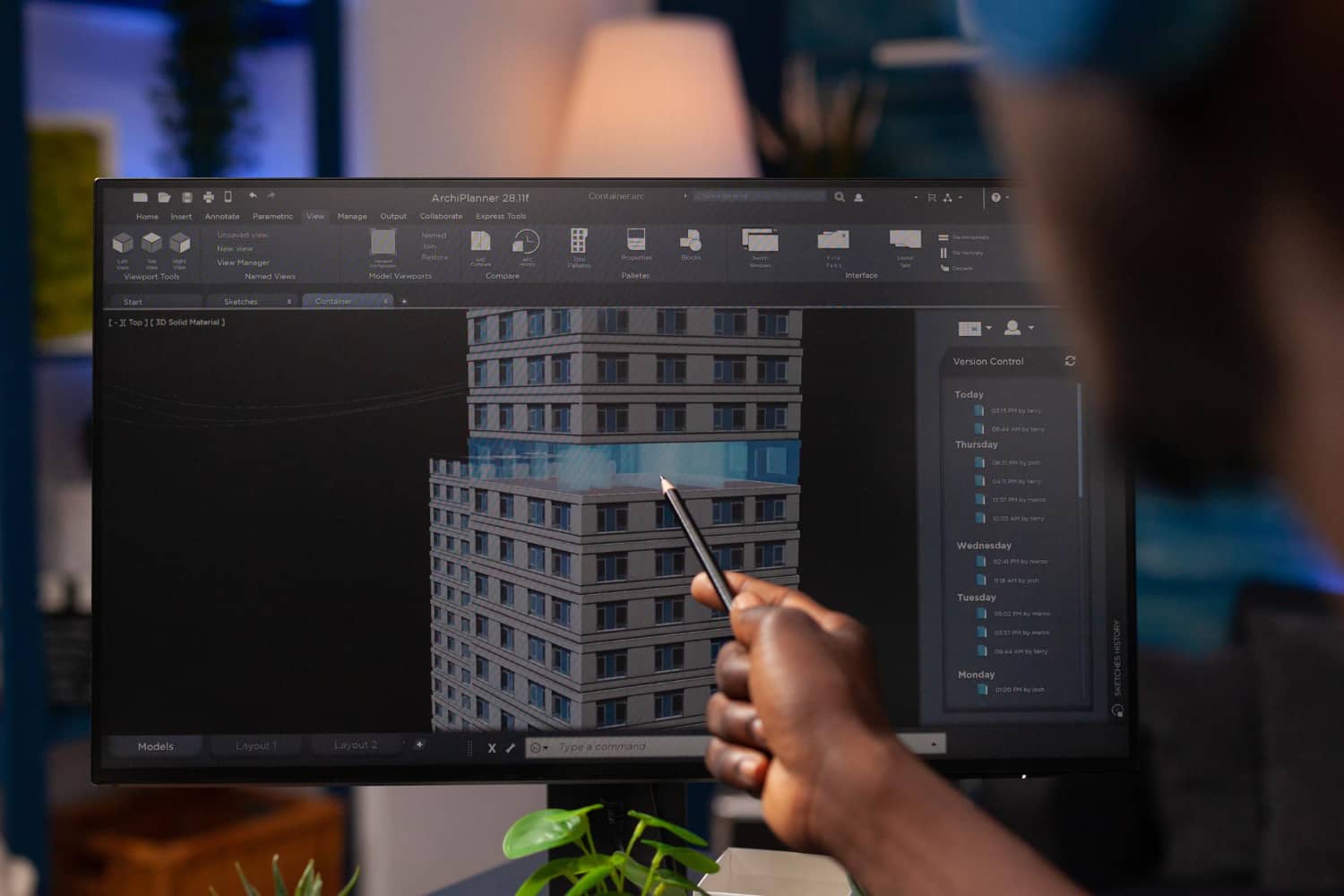
AutoCAD
- Use Layer States to save organized layer configurations for export
- PURGE command removes unused layers, blocks, and clutter
- OVERKILL removes duplicate geometry
- AUDIT and RECOVER fix file corruption
- Export as AutoCAD 2018 DWG for maximum compatibility
Revit
- Use Visibility/Graphics to control export layers
- Export → CAD Formats → Map layers to AIA standards
- Include linked files (families, CAD underlays) in export package
- Use Warnings tool to find and fix model issues
- Export 3D view as DWG to provide massing reference
ArchiCAD
- Use Organizer to manage layers and export sets
- Translator Settings map ArchiCAD layers to DWG standards
- Export IFC for BIM-to-rendering workflows
- Use Solid Element Operations to check for geometry errors
SketchUp
- Use Layers (now called Tags) to organize geometry
- CleanUp3 extension removes duplicate edges, faces
- Export as DWG/DXF (File → Export → 2D Graphic)
- Include dimension annotations on separate layer
Vectorworks
- Use Classes to organize elements (Vectorworks equivalent of layers)
- Export via File → Export → DWG/DXF
- Use Design Layer structure to separate floor levels
- Include Data Visualization to color-code by material type
Collaboration best practices
Kick-off meeting
Before sending files, schedule a 30-minute call with your visualization team to discuss:
- Project scope and deliverables
- Design priorities and hero views
- Material selections and finishes
- Timeline and milestones
- File handoff logistics
Shared cloud storage
Use Dropbox, Google Drive, or WeTransfer for large CAD file transfers. Email attachments often fail with 100+ MB files.
Version control
Establish clear versioning:
- v1.0: Initial submission
- v1.1: Minor revisions (corrected dimensions)
- v2.0: Major design changes (layout modified)
Track changes in a shared spreadsheet or project management tool.
Responsiveness
3D artists will have questions. Respond within 24 hours to avoid timeline delays. Designate a point person for CAD file questions.
ROI of proper CAD file preparation
Time savings
| Scenario | Unprepared CAD Files | Prepared CAD Files | Time Saved | |-----------------------------------|--------------------------|------------------------|----------------| | File cleanup and organization | 8–12 hours | 0 hours | 10 hours | | Clarification emails/calls | 4–6 hours | 1 hour | 4 hours | | Modeling errors and rework | 6–10 hours | 1–2 hours | 7 hours | | Total project time | 50–60 hours | 30–35 hours | 20+ hours |
Cost savings
At $100/hour visualization studio rate:
- Unprepared files: $5,000–$6,000 project cost (with cleanup surcharges)
- Prepared files: $3,000–$3,500 project cost
- Savings: $1,500–$2,500 per project
Your time investment: 3–4 hours of CAD prep work saves $1,500+ and 2 weeks of calendar time.
FAQ
What file format should I send for 3D rendering?
DWG (AutoCAD format) is the industry standard and most widely compatible. Save as AutoCAD 2018 or earlier for maximum compatibility. DXF is a good alternative if the recipient doesn't use AutoCAD. For BIM workflows, export IFC from Revit or ArchiCAD. Always confirm preferred formats with your visualization studio before exporting.
Do I need to include furniture in my CAD files?
Yes — furniture helps 3D artists understand room scale, circulation paths, and intended use. Even simple furniture blocks (rectangles for sofas, circles for tables) are better than empty rooms. If furniture style is flexible, note "Furniture placement for reference only; open to suggestions."
How detailed should my CAD drawings be for rendering?
Match detail level to visualization purpose. Conceptual renderings need only room outlines and major openings. Design development renderings require accurate dimensions, materials, and door/window details. Marketing renderings benefit from construction-level detail including millwork, fixtures, and finishes. When in doubt, ask your visualization team what level of detail they need.
What if my design changes after I've sent CAD files?
Communicate changes immediately. Provide marked-up drawings showing what changed (red for deletions, green for additions). If changes are minor (material swaps, furniture adjustments), most studios accommodate easily. Major changes (layout modifications, added rooms) may require additional modeling time and cost. Establish revision policies upfront.
Should I send just floor plans or also elevations and sections?
Always send floor plans, elevations, and at least one section. Floor plans show horizontal layout; elevations show heights and façade design; sections clarify vertical relationships (ceiling heights, mezzanines, roof structure). The more complete the documentation, the more accurate the rendering. Include roof plans and site plans when exterior views are needed.
Conclusion: Preparation pays dividends
Preparing architectural plans and CAD files for 3D visualization isn't glamorous work — but it's one of the highest-ROI activities in the design-to-delivery pipeline. Investing 3–4 hours organizing layers, cleaning geometry, documenting materials, and communicating design intent saves weeks of project time, thousands of dollars, and endless frustration.
Well-prepared CAD files enable 3D artists to focus on what they do best: crafting beautiful, accurate visualizations that bring your design vision to life. Poorly prepared files force them to become detectives, interpreting ambiguous geometry and chasing down missing information.
The checklist is simple:
- Verify scale
- Organize layers
- Clean geometry
- Provide elevations and sections
- Document materials
- Include site context
- Name files clearly
- Export compatible formats
- Communicate design intent
- Run final audit
Master these steps, and you'll become the architect every visualization studio loves to work with — the one whose projects run smoothly, finish on time, and exceed expectations.
Space Visual partners with architects and designers to deliver stunning 3D visualizations. We appreciate clients who prepare CAD files thoughtfully — it enables us to start modeling immediately and deliver higher-quality results faster. But we also offer CAD file review and cleanup services if you need assistance. We're here to make the process smooth, regardless of where you're starting.
Explore Latest Blogs
3D Product Visualization: Boosting E‑commerce Sales with Interactive Renders
A comprehensive guide to 3D product visualization for e‑commerce — how interactive renders, 360° viewers, and animations increase conversions, reduce photoshoot costs, and speed up launches.


How 3D Renderings Help in Client Approvals and Faster Project Sign-off
A comprehensive guide to using 3D renderings for faster client approvals and project sign-off — covering decision psychology, approval workflows, cost savings, and stakeholder communication strategies.